App Store Connect API Key
You can add, delete and manage iOS Certificates and Provisioning Profiles manually using Appcircle. There is also an easier way. By linking your Apple Developer account to Appcircle, you can see a list of certificates and provisioning profiles and pick the ones you want to use for building and distributing.
To link your Apple Developer account, you need an App Store Connect API Key from Apple's App Store Connect Panel.
Login to App Store Connect
Go to 
.jpg)
Make sure that the correct team is selected on the top right. For developer accounts that belong to multiple teams, this is important.
Once the team is correct, select Users and Access from the menu:
.jpg)
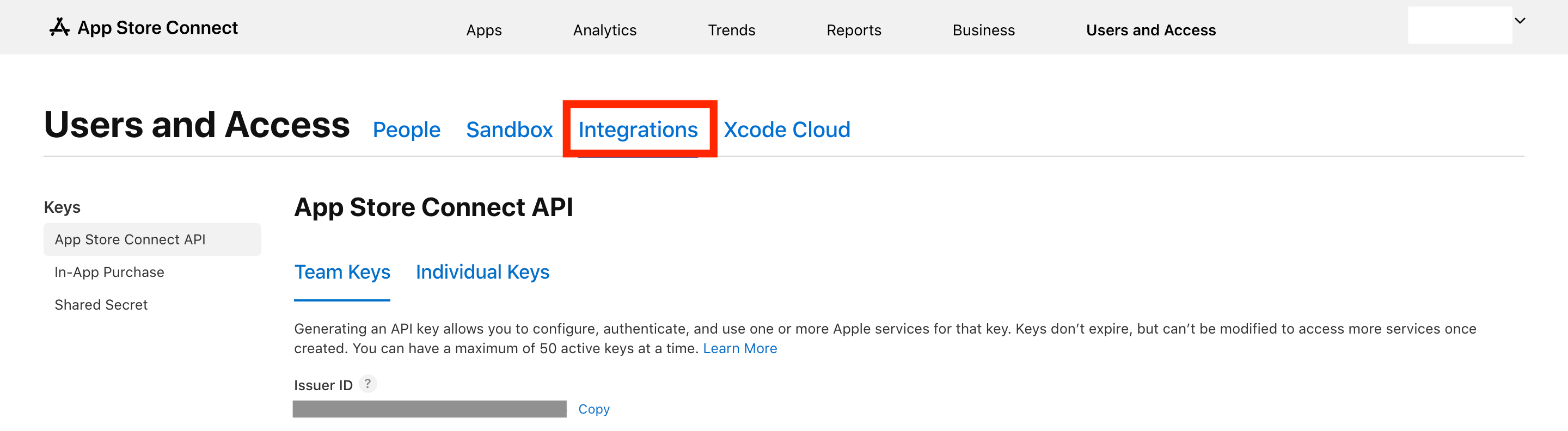
After navigating to Users and Access, you will see 4 tabs next to the title. Select the Integrations tab. Then make sure that App Store Connect API is selected from the list on the left.
Generating a New Key
To generate a new key, press the + button.
Only Account Holders can enable the API Key generation. If you see a disabled Request Access button, contact your account holder and make them follow the steps above. After they request access, you can create new keys.
.jpg)
A modal popup will ask you to enter a name and add roles for this key:
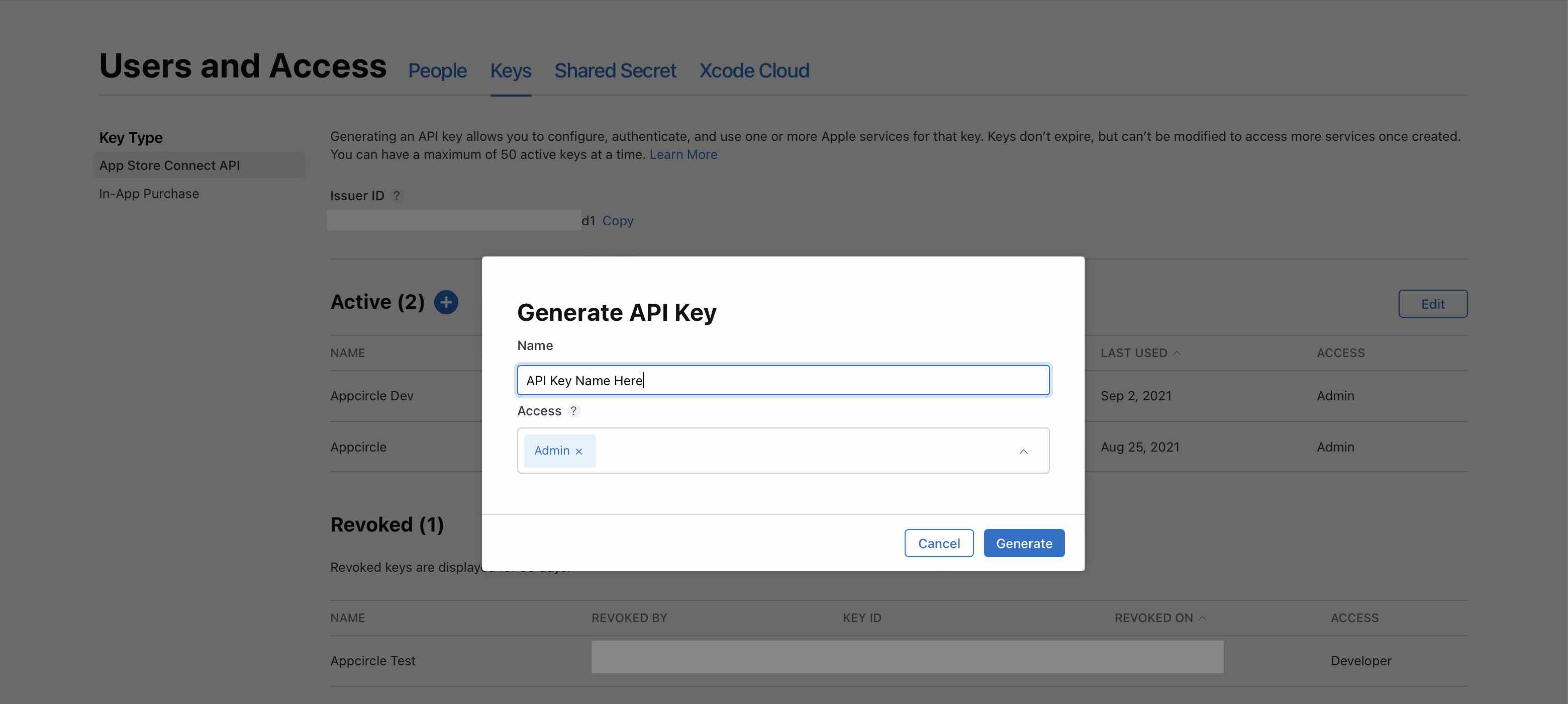
Choosing the API Key Role
The role you assign to the key determines which Appcircle features it can support. An App Store Connect API key is limited to the permissions of the role it is given, and on Apple's side Certificates, Identifiers & Profiles (signing) is a separate permission area that is only available to the Admin role over the API.
| Appcircle feature | Admin | App Manager | Developer |
|---|---|---|---|
| Upload a binary to TestFlight | ✅ | ✅ | ✅ |
| Manage TestFlight builds and testers | ✅ | ✅ | ✅ (internal testers only) |
| Update App Store metadata | ✅ | ✅ | ⛔ |
| Submit to App Store (Add for Review) | ✅ | ✅ | ⛔ |
| Create / download certificates | ✅ | ⛔ | ⛔ (development only) |
| Create / download provisioning profiles | ✅ | ⛔ | ⛔ (development only) |
| Register / edit Bundle IDs | ✅ | ⛔ | ⛔ (no delete) |
Admin access is required to create and download certificates or provisioning profiles. Select Admin if you want Appcircle to manage your full Apple workflow automatically (certificates, provisioning profiles, Bundle IDs, TestFlight, metadata and App Store submission) with a single key. This is the recommended setup.
If signing is managed outside Appcircle (you create certificates, provisioning profiles and Bundle IDs yourself and add them manually under Signing Identities), an App Manager key is sufficient for the upload-focused flow: it can upload binaries to TestFlight, manage builds and testers, update metadata and submit to the App Store. An App Manager key cannot access Certificates, Identifiers & Profiles, so Appcircle's automatic signing will fail with that key. A Developer key can upload builds and manage internal testers and build information, but cannot edit App Store metadata or submit to the App Store.
If you need a key that can act on certain apps only instead of every app in your team, see Restricting the API Key to Specific Apps below.
To see a list of permissions each role has, visit:
Restricting the API Key to Specific Apps
A key generated under Users and Access > Integrations > App Store Connect API is a team key. Its role defines what the key can do, but its access always covers all apps in the team. There is no per-app restriction for a team key.
To obtain a key that only works on designated apps, you need an individual key, which is generated by a specific App Store Connect user and inherits that user's role and their app-level restrictions. The recommended approach is to create a dedicated service account user in App Store Connect, limit that user to the apps Appcircle should manage, and generate the API key from that user.
Creating a Service Account User Limited to Specific Apps
- In App Store Connect, go to Users and Access > Users and click the + button to invite a new user. Use a mailbox your team controls (for example,
appcircle-ci@yourcompany.com) so that the account is not tied to a single employee. - Assign a role that both supports per-app access and can generate an individual key: App Manager, Developer, Marketing or Customer Support. Do not grant the user Access to Reports or Certificates, Identifiers & Profiles, either permission gives the account access to all apps and removes the app restriction.
- In the same form, choose Selected Apps instead of All Apps and select only the apps that Appcircle should be able to access.
- Complete the invitation and sign in as that user to accept it.
Generating the API Key as That User
While signed in as the service account user, click the username in the top right corner, select Edit Profile, and under Individual API Key press Generate Key. The key inherits the user's role and app restrictions, so it can act on the selected apps only.
Individual keys are generated from the user's own profile, not from Users and Access > Integrations > App Store Connect API, which manages team keys. Each user can have only one active individual key at a time. If the Generate Key button is missing, an Account Holder or Admin must grant the user the Generate Individual API Keys permission.
Download the .p8 file and add it to Appcircle exactly as described in Linking Appcircle with App Store Connect.
Account Holder, Admin and Finance roles always have access to all apps and cannot be restricted per app. A key created by a user with one of these roles is not app-scoped, even if it is an individual key.
Because an app-scoped key requires a role other than Admin, it cannot access Certificates, Identifiers & Profiles. Appcircle's automatic signing (creating and downloading certificates and provisioning profiles) will not work with such a key. Use it for the upload-focused flow (TestFlight uploads, build and tester management, metadata and App Store submission, as allowed by the selected role) and either manage signing files manually under Signing Identities or add a separate Admin key for signing.
Individual keys also cannot reach the Sales and Finance report endpoints of the App Store Connect API. Those endpoints require a team key with the matching role.
Downloading the Key
After generating the key, download the key file by pressing Download API Key next to it.
.jpg)
You can only download the file once. If you lose the file, you need to generate a new key.
Linking Appcircle with App Store Connect
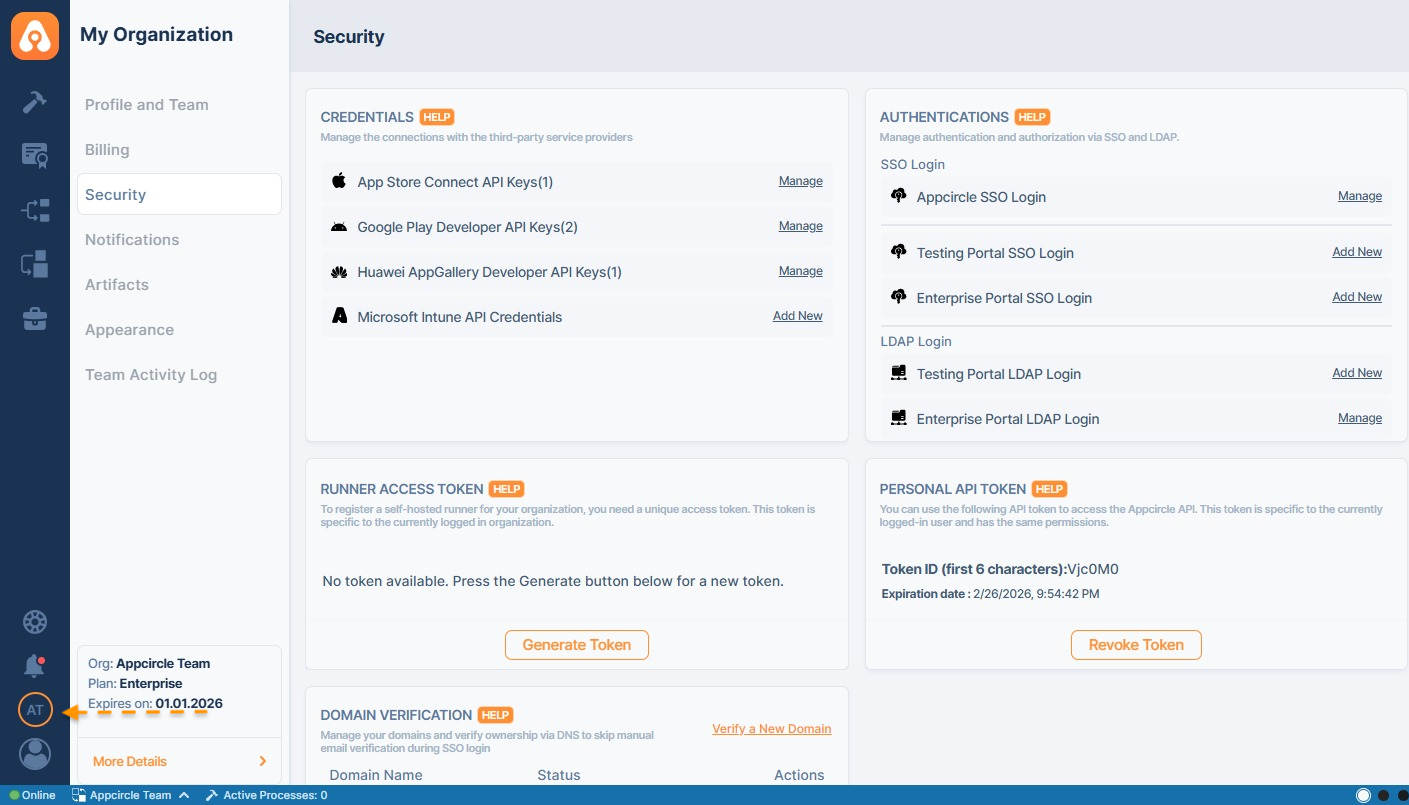
Adding a key to Appcircle is pretty easy. Go to your organization by selecting the bottom left button from the toolbar:
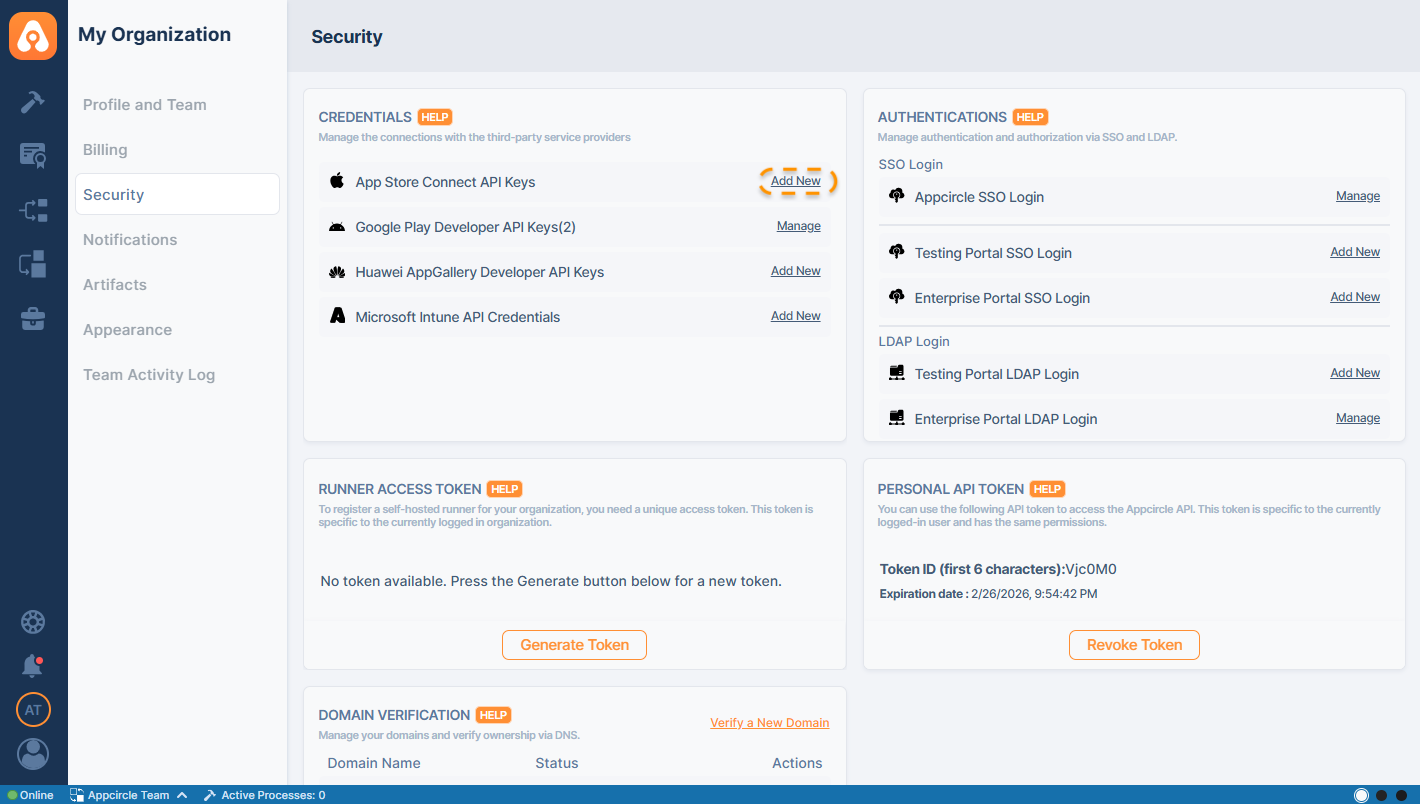
On the Organization screen, select Add New on App Store Connect API Keys list item:
On the form, upload the .p8 key file downloaded from App Store Connect:
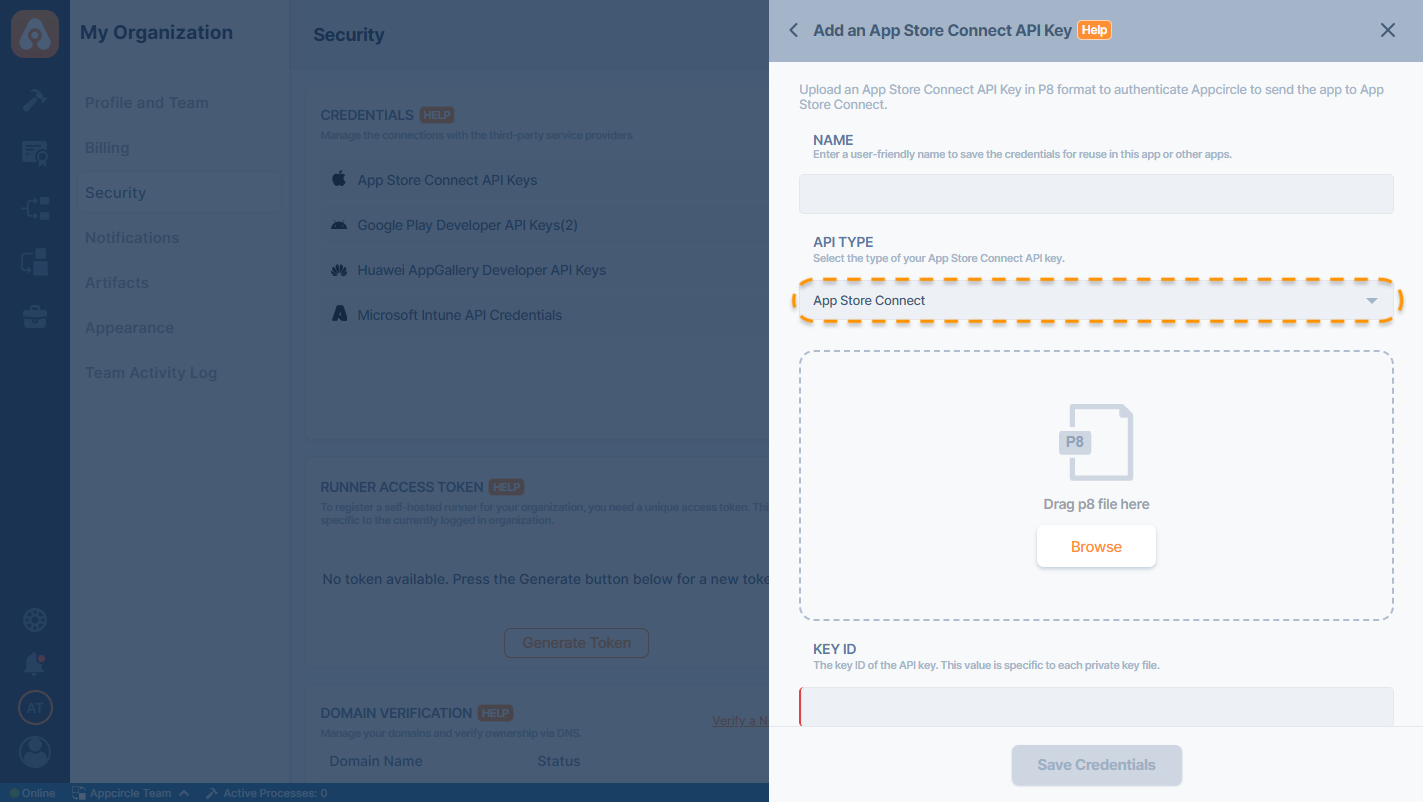
Fill in the rest of the form. You can find the Key ID and Issuer ID from App Store Connect Panel here:
.jpg)
Copy and paste them to the form in Appcircle, give it a name, and save.
You can add multiple keys. We'll ask you which key to use while downloading a certificate.
Enterprise API Key Option for App Store Connect
The App Store Connect Enterprise API Key is a crucial component for managing Apple Enterprise accounts within Appcircle. This API key allows seamless integration with App Store Connect, enabling automated provisioning, certificate management, and distribution processes for enterprise applications.
Prerequisites
Before using the App Store Connect Enterprise API Key, ensure that:
- You have an Apple Developer Enterprise Program account.
- You have Admin or Account Holder privileges in App Store Connect.
- Your App Store Connect account supports API access.
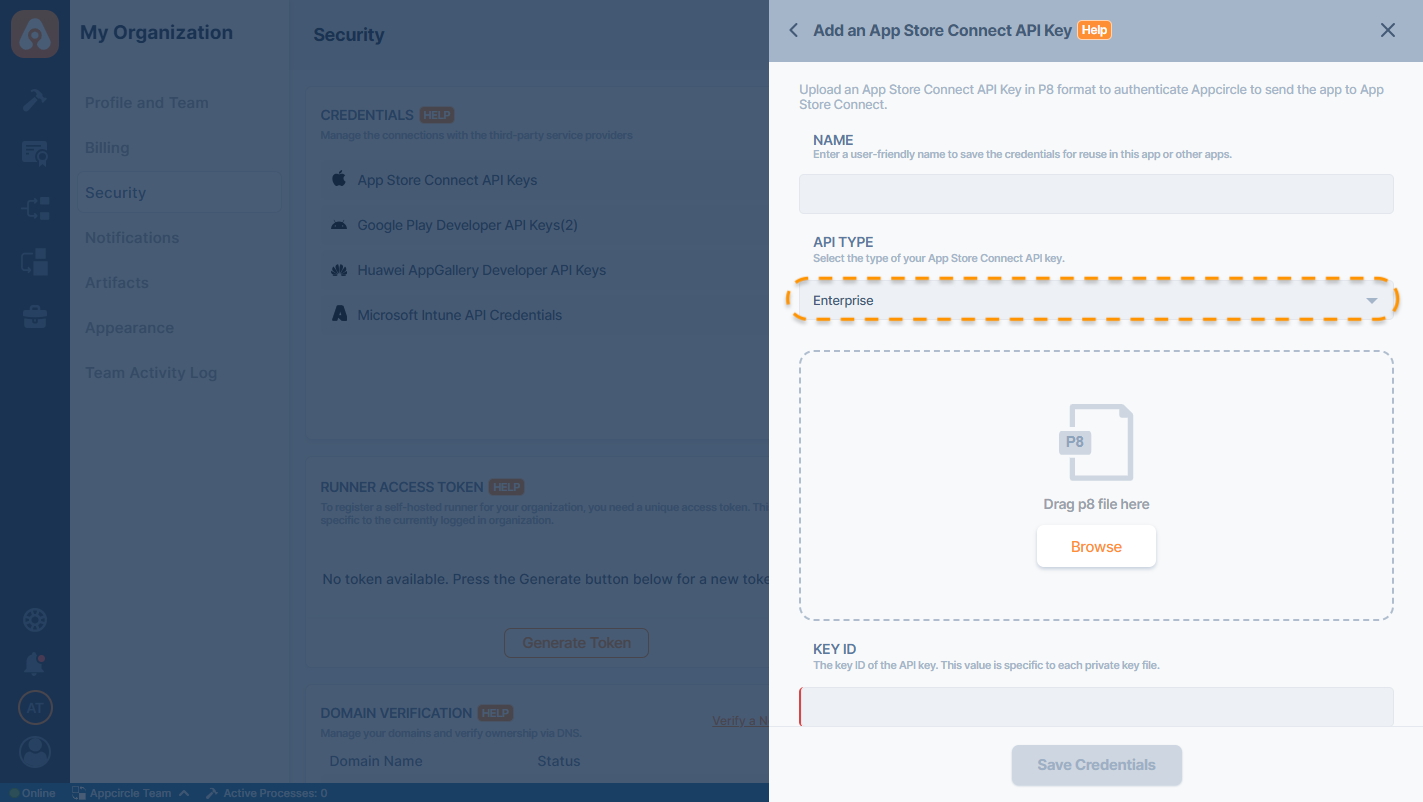
Adding the API Key to Appcircle
Once the API key is generated, it must be added to Appcircle:
- Navigate to the Organization module in Appcircle.
- Click Add New next to the App Store Connect API Keys section under Credentials area.
- Upload the downloaded .p8 file.
- Enter the Key ID and Issuer ID obtained from App Store Connect.
- Select the Enterprise API Key option for enterprise account integration.
- Click Save to complete the setup.
Please note that the registered Enterprise API Key cannot be used within the Publish module because the Apple Enterprise Program does not provide TestFlight or App Store Connect services.
Sharing App Store Connect Credentials
Root Organization users have the ability to share their saved credentials with Sub-Organization users. This feature helps streamline credential management across distributed teams and multiple organizational units.
How to Share Credentials
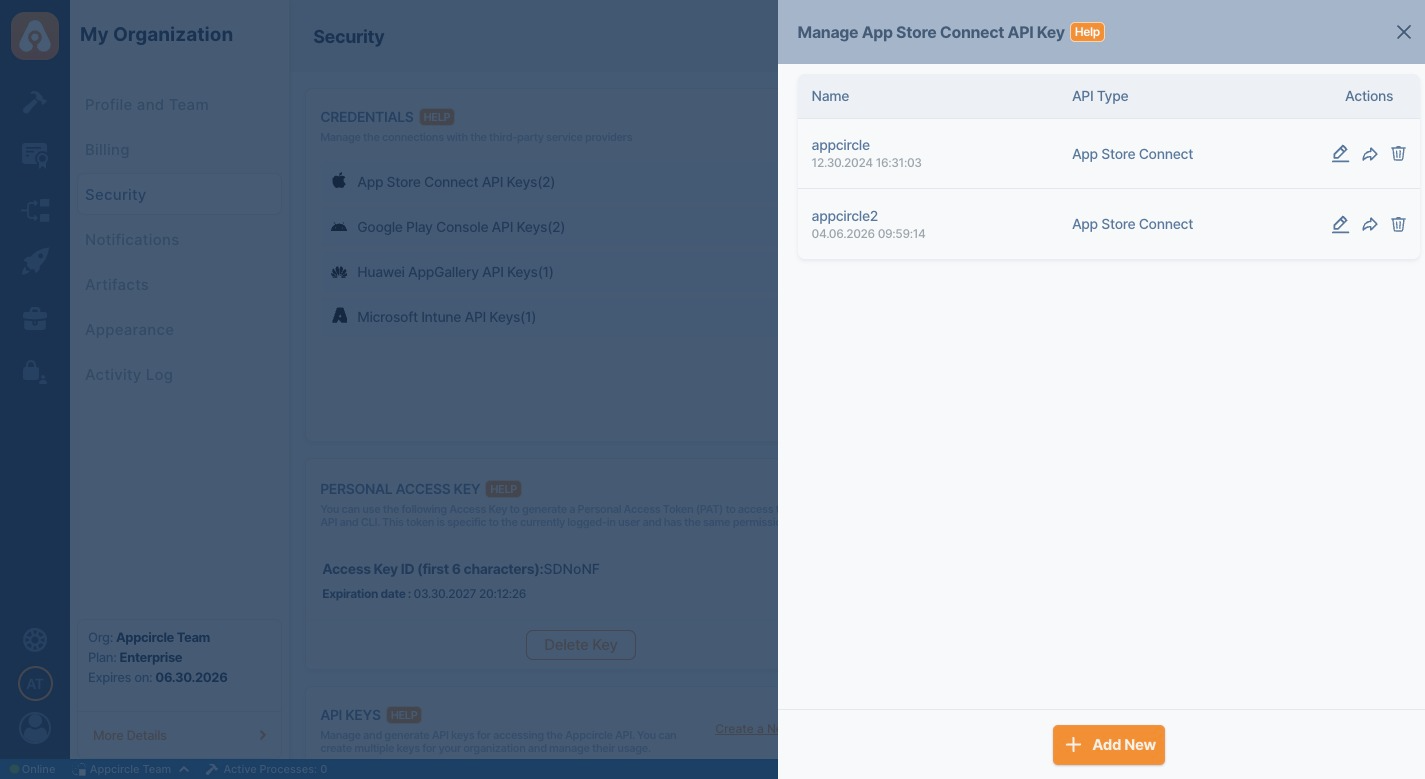
1. Navigate to the Credentials Section
Go to My Organization > Security > Credentials.
2. Open Manage Panel
Click the respective credential type (e.g., App Store Connect API Keys) to view your saved credentials.
3. Select the Credential
Click the Share icon under the Actions column for the credential you want to share.
4. Configure Sharing Settings
In the Share Credentials panel:
- Enter or confirm the Settings Name.
- Toggle Share with all sub-organizations if you want to make the credential available to all sub-organizations automatically.
- Alternatively, manually select specific sub-organizations that should have access by checking the boxes under Sub-Organizations.
5. Save Sharing Configuration Once your selections are made, click Share to apply.
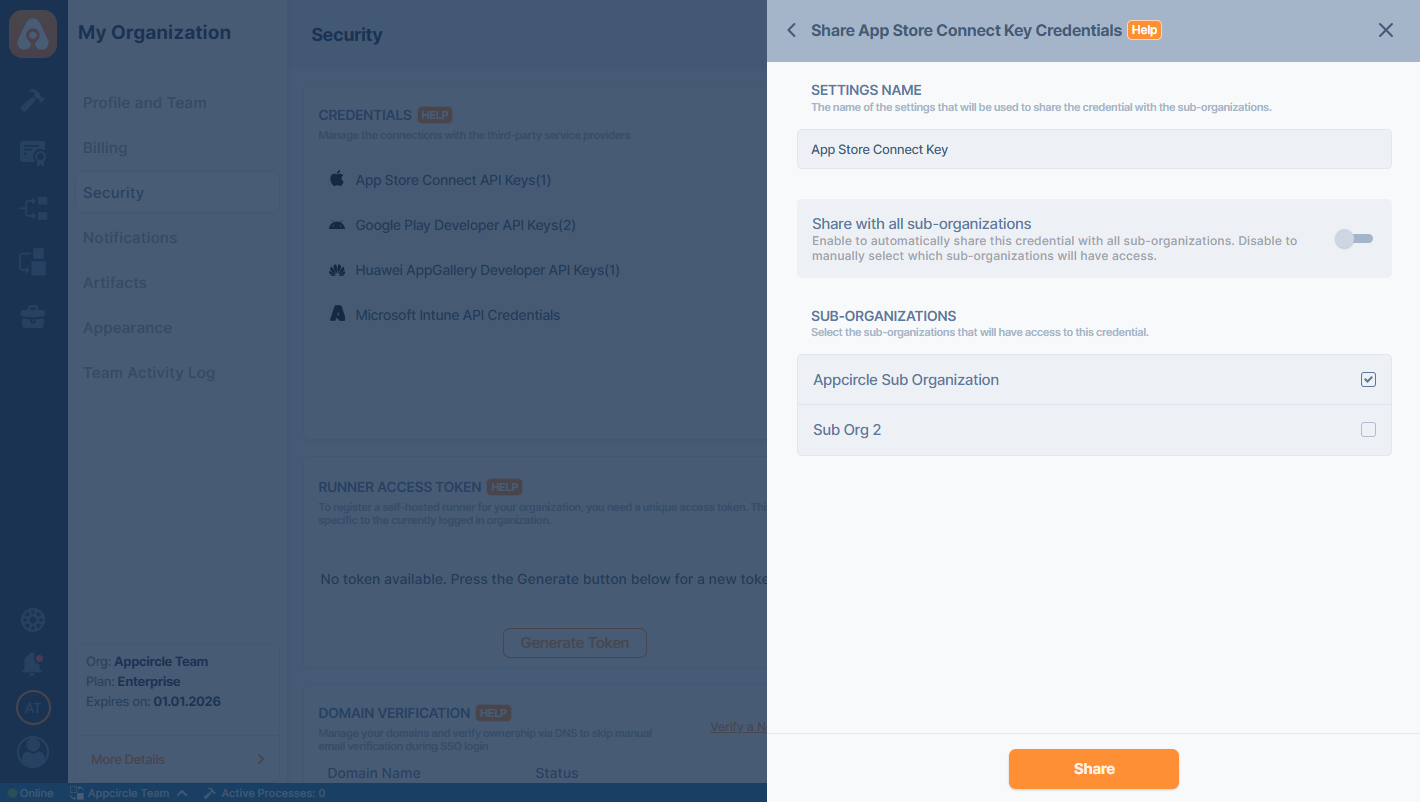
Shared credentials will be visible and usable in the selected Sub-Organizations as if they were their own.
Sub-Organizations cannot edit or delete credentials shared by the Root Organization.
The shared credentials by the Root Organization will be marked with Root Tag on the Sub Organization's credential list.
When the “Share with all sub-organizations” toggle is enabled, the credential is shared with all existing sub-organizations and will automatically be available for newly created sub-organizations.
You can also edit the name of the credential setting by clicking the edit button